

Download Chrome Office Viewer – Open Office Files Directly in Chrome
Overview
Chrome Office Viewer is a lightweight Chrome extension that brings Microsoft Office documents straight into your browser window. Designed for users who need quick access to Word, Excel, and PowerPoint files without the overhead of a full‑featured Office suite, the viewer supports DOC, DOCX, XLS, XLSX, PPT, and PPTX formats. Once installed, you can open a document with a single click, zoom in for detailed reading, print directly, or save a local copy for later use.
The extension does **not** provide editing capabilities, keeping the footprint small and the performance snappy. Currently released for the Chrome beta channel, the developer signals an imminent rollout to the stable Chrome Web Store, promising a broader audience soon. This tool is ideal for students, remote workers, and anyone who frequently receives Office attachments but prefers a browser‑centric workflow.
Its secure sandboxed environment ensures that opening a file does not expose your system to macro‑based threats, and automatic updates through Chrome keep the viewer current with the latest file‑format specifications. Whether you’re on a Windows PC, a Mac, or a Chromebook, Chrome Office Viewer aims to make document consumption effortless, turning the browser into a universal Office file hub.
Key Features
- Native support for Word, Excel, and PowerPoint file types (DOC, DOCX, XLS, XLSX, PPT, PPTX).
- One‑click opening from Google Drive, local downloads, or email attachments.
- Zoom in/out controls for precise reading of detailed spreadsheets or slides.
- Print button that sends the document directly to your default printer without leaving Chrome.
- Save‑as option to download a clean copy of the opened file.
- Secure sandbox execution that isolates the viewer from the rest of the system.
- Automatic background updates via the Chrome Web Store.
- Lightweight footprint – no bulky Office installation required.
- Responsive UI that adapts to Chrome’s dark and light themes.
- Available in the Chrome beta channel with stable release planned.
The feature set focuses on fast, reliable viewing rather than editing, which keeps the extension lean and quick to load. Users who only need to read or print documents will appreciate the streamlined interface that eliminates unnecessary toolbars and menus. Because the viewer runs inside Chrome’s rendering engine, it inherits the browser’s performance optimizations, resulting in near‑instant opening times even for large PowerPoint decks or Excel workbooks with thousands of rows.
Installation & Usage Guide
Installing Chrome Office Viewer follows the familiar Chrome Web Store process. First, open Chrome and navigate to the Chrome Web Store (or follow the direct link from the beta release page). Search for “Chrome Office Viewer,” then click **Add to Chrome**. A confirmation dialog appears; accept the permissions, which are limited to reading and displaying Office files. The extension icon appears to the right of the address bar.
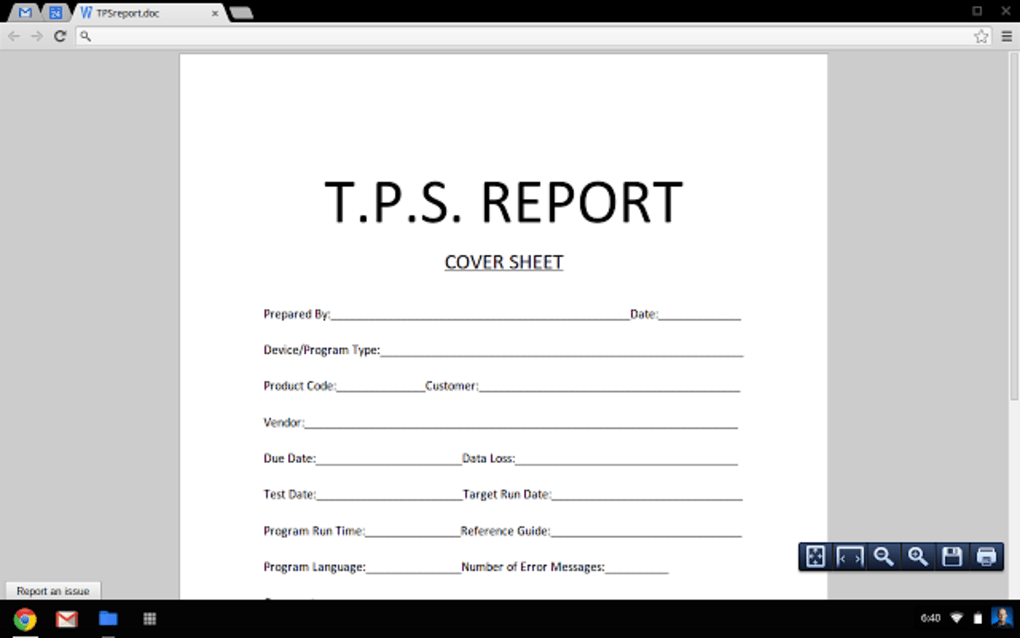
To open a document, simply click a link to a supported Office file. Chrome will automatically route the request to the Viewer, replacing the standard download prompt. Inside the viewer, a toolbar offers zoom, print, and save buttons.
Use the zoom slider for detailed inspection of spreadsheets or slide notes. To print, click the printer icon; the viewer formats the document for standard printing and opens Chrome’s print dialog. Saving works by clicking the floppy‑disk icon, which triggers a download of the original file.
For power users, the extension can be set as the default handler for Office MIME types. Go to Chrome Settings → Advanced → Privacy and security → Site Settings → Additional content settings → Handlers, and enable “Allow sites to ask to become default handlers.” After that, any DOCX, XLSX, or PPTX file encountered online will automatically open in Chrome Office Viewer unless you manually override it.
Updating is hands‑free; Chrome checks the Web Store daily and applies patches without user interaction. Should a new version be released, you’ll see a brief “Extension updated” toast near the toolbar. Because the viewer runs in a sandbox, updates never interfere with your existing browsing sessions, preserving your open tabs and history.
Compatibility, Pros & Cons, FAQ & Final Verdict
Compatibility
Chrome Office Viewer works on any platform that supports the Chrome browser, including Windows 10/11, macOS 10.14+, Chrome OS, and Linux distributions with Chrome. Since the extension runs inside Chrome, there’s no separate installer or system‑level dependency. Users on mobile Chrome (Android or iOS) can also install the extension via the Chrome Web Store, but note that mobile support is currently limited to viewing only; printing may require a connected printer via Google Cloud Print or native OS sharing.
Pros
- Fast, no‑install viewing of Office documents directly in the browser.
- Zero‑cost and secure, leveraging Chrome’s sandbox.
- Supports all major Office file formats.
- Built‑in zoom, print, and save functions simplify workflow.
- Lightweight footprint compared to full Office suites.
- Automatic updates keep file compatibility current.
Cons
- No editing capabilities – purely a viewer.
- Only available in Chrome beta at the moment; stable release pending.
- Mobile printing support is limited.
- Advanced features like track changes or macros are not supported.
Frequently Asked Questions
Is Chrome Office Viewer free to use?
Yes, the extension is completely free. You can add it to Chrome without any subscription or hidden fees.
Can I open password‑protected Office files?
Password‑protected documents are not supported. The viewer will display an error message if it encounters a locked file.
Does the viewer retain original formatting?
Yes, Chrome Office Viewer preserves most layout elements, fonts, and images, offering a faithful representation of the original file.
Will the extension affect my browser performance?
The extension is lightweight and runs only when you open a supported file, so it has minimal impact on overall Chrome performance.
How do I report a bug or request a new feature?
Visit the extension’s page on the Chrome Web Store and use the “Send feedback” link to contact the developer directly.
Conclusion & Call to Action
Chrome Office Viewer fills a niche for users who need a quick, secure way to read Office documents without installing a heavyweight suite. Its seamless integration with Chrome, combined with essential tools like zoom, print, and save, makes it a practical addition to any workflow that revolves around the browser. While the lack of editing features may deter power users, the extension’s free price point and low resource consumption more than compensate for that limitation. As the stable release approaches, early adopters on the beta channel can already experience faster document access and benefit from automatic updates that keep file compatibility current.
Ready to streamline your document workflow? Download Chrome Office Viewer now and start opening Word, Excel, and PowerPoint files directly in Chrome—securely, instantly, and for free.







